EXPORT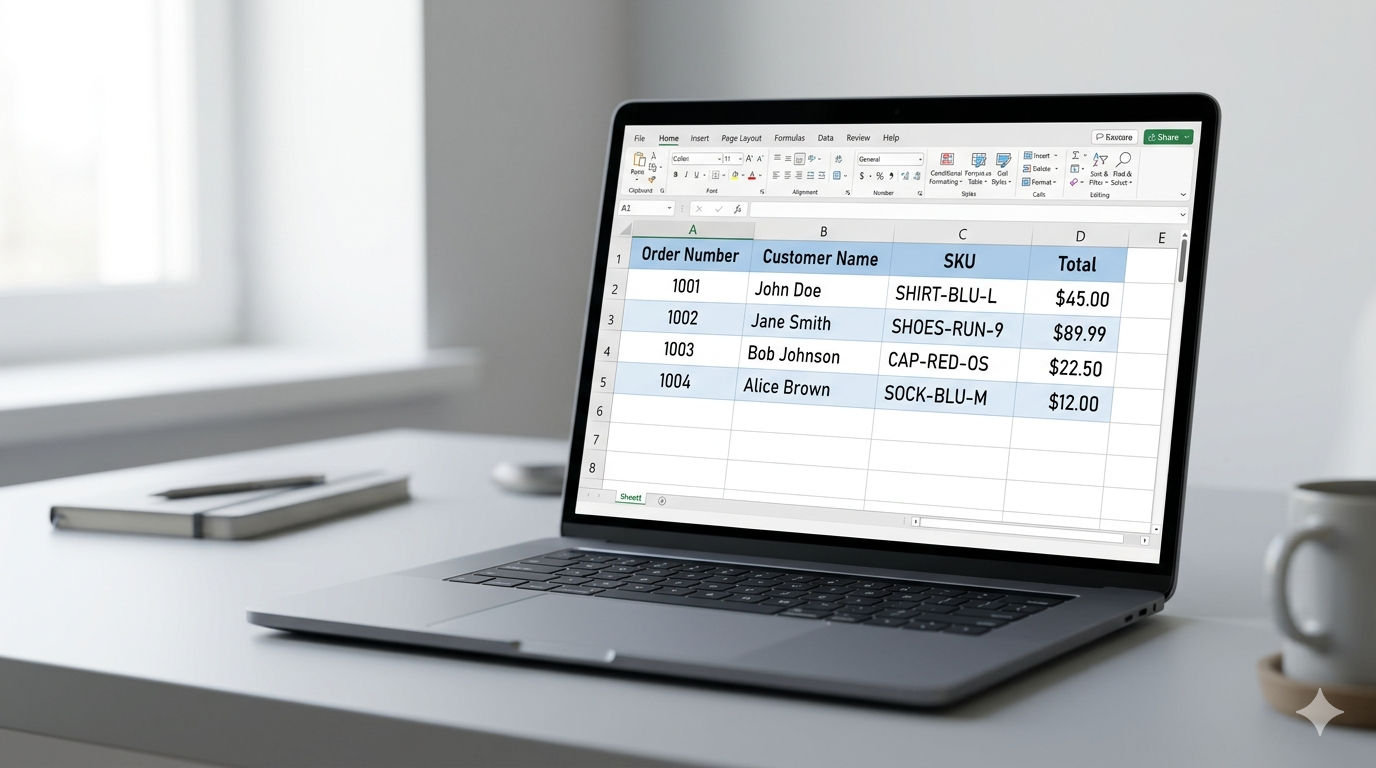
When merchants ask how to export Shopify orders to Excel, they expect a straightforward answer. It turns out to be less straightforward than it looks: Shopify's built-in export does not produce an Excel file. It produces a CSV with 69 fixed columns, and opening that CSV directly in Excel introduces a data corruption risk that most merchants discover only after it causes a problem.
Key Takeaways
- Shopify's built-in order export generates a CSV file with 69 fixed columns, not an .xlsx file.
- Opening a Shopify CSV in Excel can corrupt long numeric order IDs via scientific notation auto-formatting.
- Export OrderPro generates a native .xlsx file with only the columns you choose, named as your downstream tools expect.
- Use Excel for human-readable reports, formatted deliverables, and accounting workflows. Use CSV for system integrations, database imports, and automation pipelines.
What Does Shopify's Built-In Order Export Actually Give You?
Shopify's built-in order export downloads a CSV file from the Orders page in Admin. The export includes 69 fixed columns covering order details, contact information, billing and shipping addresses, line items, financial status, fulfillment status, discount codes, shipping method, and more. You cannot choose which columns appear, remove the ones your workflow does not need, or rename any header to match what a supplier or accountant expects.
For stores with a large volume of orders in the selected date range, Shopify does not offer an immediate download. It emails the CSV to your account's address instead, adding delay to any time-sensitive reporting workflow.
The file format is plain text. That is useful for system imports and data pipelines, but a CSV and an Excel workbook are not the same thing, and the distinction matters for how you use the file.
For a full comparison of what Shopify's built-in export covers versus what a dedicated app adds, see Shopify's Built-In Order Export vs. Export OrderPro.
Does Opening a Shopify CSV in Excel Actually Work?
Opening a Shopify CSV in Excel works, with one significant catch. Excel auto-formats long numeric values, and Shopify uses long integers throughout: internal order IDs, product IDs, variant IDs, and payment reference numbers are all long numeric strings. Excel displays these as scientific notation, turning 6123456789012 into 6.12346E+12.
This causes two problems. First, if you save the file after Excel has reformatted it, the scientific notation value replaces the original. The ID is now permanently corrupted, and any downstream workflow relying on it, such as a 3PL lookup or a re-import into a fulfillment system, will fail on the truncated value.
Second, even if you catch the issue before saving, Excel has already changed the display. Any formula, VLOOKUP, or filter that references those cells will match against the formatted value, not the original. Shopify's own documentation acknowledges this behavior and recommends importing CSVs via the Data Import Wizard rather than opening by double-click, but most merchants discover the issue only after a corrupted file has caused a reconciliation problem.
A native .xlsx file avoids this entirely because numeric values are written into the workbook cells as text from the start, with no auto-formatting applied.
How Multi-Line Orders Look in a Shopify CSV vs an Excel Export
A second structural difference between Shopify's CSV and a purpose-built Excel export is how multi-item orders are represented.
In Shopify's CSV, each line item in an order occupies its own row. For an order with three products, you get three rows. Most order-level fields (customer name, shipping address, discount code, total) appear only on the first row. The second and third rows are blank for those fields. This is the standard CSV format for line-item data, but it creates friction when you need to do per-order analysis in Excel, because aggregating totals requires a SUMIF formula or a pivot table, not a simple column sum.
A custom Excel report built with Export OrderPro lets you choose how line items are handled. You can include line-item fields (SKU, product name, quantity, price) alongside order-level fields and repeat order-level data on every row, which is what most warehouse and fulfillment system import templates expect. Alternatively, if you are building a financial summary rather than a pick list, you can exclude line-item fields entirely and get one clean row per order.
How to Export Shopify Orders to Excel with Export OrderPro
Export OrderPro generates native .xlsx files directly inside Shopify Admin. You choose which columns appear, name each header to match your downstream tool, set the column order, and download or schedule the file. No CSV intermediary, no scientific notation risk, no post-processing.
Step 1: Install Export OrderPro
Search for Export OrderPro in the Shopify App Store and click Install. The app runs entirely inside Shopify Admin. No separate login is needed. On first load, a default report design is ready to use immediately with commonly needed order fields. You can run your first Excel export straight away, or create a custom design first.
For a full walkthrough of installation and first export, see Getting Started with Export OrderPro.
Step 2: Create a report design for your audience
Open Manager → Report Designer and create a new report design, or start from the default. A report design is a saved column layout: you select which fields to include, name each header, and arrange the column order.
For an accounting report, you might include order name, order date, customer name, subtotal, tax, total, discount amount, payment method, and financial status, with headers renamed to what your accounting software's import template expects ("Invoice Date" rather than "Created at", "Net Amount" rather than "Subtotal").
For a warehouse pick list, you would include order name, shipping name, shipping address, line item name, SKU, and quantity, and leave out all financial columns.
Save each design with a descriptive name. Designs are shared across all staff with app access and are available in any manual export or automation.
Step 3: Set your date range and filter
On the Reports page, select a date range and optionally apply a filter to narrow which orders are included. The built-in filter supports financial status, fulfillment status, order tags, vendor, product SKU, and more. For full detail on how filters work, see Shopify Order Filters Explained.
Step 4: Set the export format to Excel
In Manager → Configuration, set the export format to Excel (.xlsx). This applies to all manual exports and automation runs. You can switch formats at any time without affecting your report designs or filters.
Step 5: Export and download
Click Export on the Reports page. The file generates server-side and downloads as an .xlsx workbook. Open it directly in Microsoft Excel, Google Sheets, or LibreOffice Calc without any import wizard. All numeric values, including order IDs and product IDs, retain their exact original values.
For recurring reports, you can schedule an automation to generate and email the Excel file on a daily, weekly, or monthly basis. See How to Schedule Automated Order Reports for a setup walkthrough.
When Should You Use Excel vs CSV?
The right format depends on where the file is going, not on which tool you prefer to open it in.
| Use case | Recommended format | Reason |
|---|---|---|
| Accountant or financial team | Excel (.xlsx) | Formatted, supports pivot tables and formulas, opens without import wizard |
| Accounting software import | Check the software's template | QuickBooks Online, Wave, Xero: CSV. Most desktop accounting apps: CSV. Check the import guide for your specific tool. |
| Warehouse or 3PL portal | CSV | Most fulfillment portals and WMS systems expect CSV input |
| Management summary (emailed) | Excel | Column formatting makes it more readable without any additional setup |
| Database or ETL pipeline | CSV | SQL imports, Python pandas, and ETL tools handle plain text more reliably |
| Supplier order feed | CSV | Automated intake systems prefer plain text over binary formats |
| Shared with non-technical teammates | Excel | No import wizard needed; opens directly in Excel or Google Sheets |
The practical rule: CSV is for machines, Excel is for people. When the file needs to be readable and actionable without additional processing, Excel is the right choice. When the file feeds an automated system, use CSV.
Why Column Naming Matters for Excel Exports
Accounting software, fulfillment portals, and CRM import templates often require column headers to match a specific name exactly. If your QuickBooks import template expects "Invoice Reference" and your export file contains a column called "Name", the import fails or maps incorrectly.
In Export OrderPro's Report Designer, you rename each column header once. Every subsequent export, manual or automated, uses those names. This eliminates the manual find-and-replace step that most merchants perform in Excel before every import. That step is one of the primary sources of the data entry errors that DOSS Research (2026) found cost operations teams an average of 3.6 hours per week and $4,315 per significant incident.
Save one accounting report, one warehouse report, and one management summary. After the initial setup, each team receives a file that is already named correctly and already contains exactly the fields they need.
Frequently Asked Questions
Does Shopify have a native Excel export?
No. Shopify's built-in order export produces a CSV file only. To get a native .xlsx file from Shopify, you need a dedicated export app. Opening a Shopify CSV in Excel and re-saving it as .xlsx does not give you a true Excel export, and risks corrupting long numeric values via scientific notation formatting.
How many columns does Shopify's default order export include?
Shopify's default CSV export includes 69 fixed columns. You cannot add, remove, rename, or reorder them. Every export always contains all 69 columns, regardless of whether your workflow uses them.
Can I automate the Excel export so it arrives in my inbox daily?
Yes. Export OrderPro's Automations feature lets you schedule an Excel export on a daily, weekly, monthly, or custom interval and deliver it by email as an .xlsx attachment. The schedule runs on Export OrderPro's server whether or not you are logged in to Shopify Admin. See How to Schedule Automated Order Reports for setup instructions.
Will Excel distort my Shopify order IDs if I open the CSV directly?
Yes, if you open the raw Shopify CSV by double-clicking it, Excel may auto-format long numeric IDs as scientific notation (converting 123456789012 to 1.23457E+11, for example). A native .xlsx file from Export OrderPro is not affected because the values are written as text cells in the workbook from the start.
Can I have different Excel report designs for different teams?
Yes. Report designs are independent saved layouts. Create one for the accounting team (financial columns, headers renamed for your accounting software), one for the warehouse (SKU, quantity, shipping address, fulfillment status), and one for weekly management summaries. Each design is available in the Reports page dropdown and in any automation. All staff with access to the app can use any design.
How many orders can one Excel export cover?
There is no hard cap. For large date ranges covering tens of thousands of orders, generation runs server-side and may take a minute or two before the file is ready to download. There is no limit on order count per export.
What file size does an Excel export produce compared to CSV?
.xlsx files use compression internally, so the file size is typically smaller than an equivalent CSV for the same order data. A 10,000-order export that produces a 4 MB CSV commonly produces an .xlsx in the 1-2 MB range. Both are well within the attachment size limits of most email providers.
Next Steps
Once you have an Excel report design working for manual exports, the next step is eliminating the manual trigger entirely. An automated Excel report that arrives in your inbox before the workday starts removes the last manual step from your order data workflow. See How to Schedule Automated Order Reports to configure your first automation in about ten minutes.