EXPORT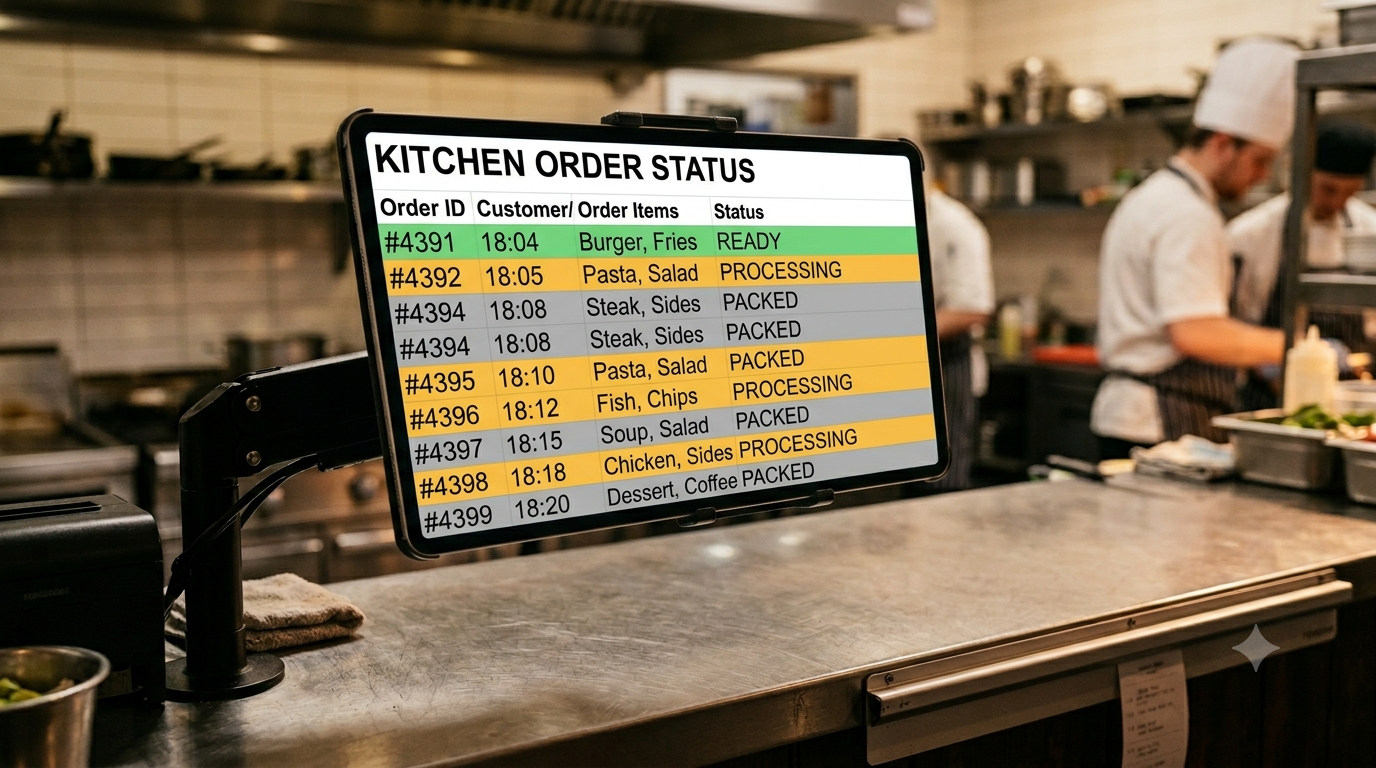
Restaurants using kitchen display systems consistently report faster ticket times and fewer order errors — Fresh KDS customer stories document individual venues cutting wait times by 50% or more. Yet most Shopify merchants manage orders from a static admin page they refresh manually — no per-row status indicators, no dedicated display mode, and no way to put a live order screen in a kitchen or warehouse without buying separate hardware. Export OrderPro's Live view solves this with two features most users never find.
TL;DR: Export OrderPro's Live view auto-refreshes your Shopify order report every 5 minutes and opens full-screen in a dedicated browser tab with one button click. The Local Row Status feature adds color-coded preparation tracking — Processing, Ready, Packed — stored locally in the browser so staff can update order status on any screen without changing a single record in Shopify.
What Is the Live View in Export OrderPro?
The Live view is a dedicated browser screen inside Export OrderPro that displays your Shopify orders using the column layout and filters you've already configured in your report design — and refreshes automatically every 5 minutes without any manual page reload. Because it inherits your report design, the columns you see are entirely under your control: order number, customer name, line item, fulfillment location, total — whatever your team needs.
This is different from Shopify's own "Live View" in Analytics, which tracks visitor traffic and has documented auto-refresh reliability issues noted by merchants in the Shopify Community forums. Export OrderPro's Live view shows the actual orders themselves, in your custom format, reliably refreshing on a predictable cycle.
The five-minute refresh cycle runs silently in the background. When new orders arrive, they appear on the next cycle. You don't need to touch the keyboard or mouse — which makes it practical for a screen mounted on a wall, sitting at a prep station, or running on a tablet at a checkout.
How to Open the Live View in Full-Screen Mode
A button inside the Live view opens it in a new browser tab. Once it's in a dedicated tab, pressing F11 — or using your browser's "Enter full screen" option on Mac — fills the entire display. No app purchase, no configuration. Any device with a modern browser becomes a functional order screen.
Steps to set up a dedicated display
- Open Export OrderPro from your Shopify Admin and navigate to the Live view.
- Click the Open in new tab button at the top of the Live view.
- On the new tab, press F11 (Windows / Linux) or use View → Enter Full Screen (Mac) to go full screen.
- For a permanent display — kitchen tablet, wall monitor — bookmark the URL so staff can reopen it quickly after a restart.
Dedicated KDS app subscriptions for Shopify can add meaningful monthly recurring cost — standalone KDS apps typically run $30–$100+ per month per location before hardware. If you also need recurring scheduled reports alongside the live display, see How to Schedule Automated Order Reports. A two-screen setup — kitchen and expo — adds up fast. Export OrderPro's full-screen tab runs on any device you already own at zero incremental cost.
On an Android tablet, Chrome's Add to Home Screen option creates an icon that launches straight into full-screen mode. Staff tap one button, the display fills with the Live view, and it stays there.
What Is Local Row Status and Why Does It Matter?
Local Row Status is a column type in Export OrderPro that adds a dropdown to each order row in the Live view. Staff select a status from the dropdown — Processing, Ready, Packed, or any labels you define — and the background color of the entire row changes instantly to the color you've assigned. The change is visual and immediate. Nothing is written back to Shopify.
Every status change is stored in the browser's local storage. This design is intentional, not a limitation:
- No API permissions required: restricted staff accounts work without any additional Shopify access.
- No risk of accidental order edits: the display can't fulfill, cancel, or modify any order in Shopify Admin.
- Survives page refreshes: statuses persist through the 5-minute auto-refresh cycle and manual F5 refreshes within the same browser.
Color-coding order rows is one of the most requested features in the Shopify Community forums, with merchants asking for it by tag, vendor, fulfillment method, and priority since at least 2020 — and native Shopify still doesn't offer it. The same report design that drives the Live view also controls your automated scheduled exports, so setup is shared. Export OrderPro delivers it locally, without a Chrome extension or a third-party plugin.
How Do You Set Up Local Row Status?
Setup takes under five minutes and requires adding one column to your report design. Open the report you use with the Live view in the Report Designer, then follow these steps:
- Click Add Column and add a new empty column (leave the data field blank).
- Click Edit Custom Column on the new column (the pencil icon in the column header).
- In the Column type dropdown, select Local Row Status.
- Under Status options, click Add option and enter your first status name — for example,
Processing. - Choose a highlight color for that status. This color will fill the entire order row when selected.
- Repeat for each additional status:
Ready,Packed, or whatever labels fit your workflow. - Save the column and return to the Live view.
Your new column now appears as a dropdown on every order row. Selecting a status recolors the row immediately.
Color recommendations for kitchen and warehouse environments
- Processing: bright amber or yellow. Signals action required and is readable under kitchen lighting.
- Ready: green. The universal "done" signal; staff recognize it without reading the label.
- Packed / Dispatched: grey or muted blue. Fades into the background so active rows stand out visually.
Who Benefits Most from a Live Order Display?
Any business where orders move through preparation stages can use the Live view as an operational screen. Adopting a dedicated order management workflow — moving from a manually-refreshed admin page to a purpose-built display — reduces preparation errors and speeds up throughput by removing the need to cross-reference paper or verbal cues. The gains come from visual clarity, not complex software.
Restaurants and cafes
Incoming Shopify online orders appear on the kitchen screen with each auto-refresh. A pass chef changes an order's status to "Ready" once the dish is plated, turning that row green. Front-of-house staff glancing at their own screen see which orders are waiting and which are ready — with no verbal communication required.
Dark kitchens and event caterers
Pre-order businesses with large batches use the Packed status to mark which orders are bagged and ready for pickup. The color shift makes it obvious at a glance which orders still need attention without scrolling a long list or cross-referencing a paper sheet.
Small manufacturers and print shops
A production team tracks "In production," "Quality check," and "Ready to ship" entirely inside Export OrderPro, without touching Shopify's fulfillment flow. Local Row Status adds internal workflow visibility without creating any Shopify order changes.
Fulfillment warehouses
Staff working a pick-pack line mark orders "Picked" and "Packed" on a shared tablet mounted at the packing station. They don't need Shopify Admin access — the Export OrderPro Live view is all they see.
Tips for Running a Smooth Live Order Screen
A few small setup choices make the Live view reliable as a permanent display rather than a tab you manually maintain.
- Pin the tab. In Chrome or Firefox, right-click the tab and select "Pin." Pinned tabs survive accidental clicks and restart with the browser, keeping the display running across sessions.
- Use a dedicated browser profile. Set up a separate Chrome profile for the display device so staff can't navigate elsewhere, log into personal accounts, or accidentally close the order screen.
- Manual refresh between cycles. The auto-refresh fires every 5 minutes. For immediate updates — a burst of new orders during a lunch rush — press F5 to reload instantly without waiting for the next cycle.
- Two-screen setups stay independent. If you run a kitchen display and a front-of-house display, each device maintains its own Local Row Status. They don't sync, which means one screen's status changes don't overwrite another's — each station tracks its own view.
- Reset at shift end. Local Row Status persists across browser sessions within the same device. At the end of a shift, staff can clear the combobox on completed orders or simply let incoming orders start fresh at the top of the view.
Frequently asked questions
Does Local Row Status sync to Shopify?
No. All status changes are stored in the browser's local storage on the device where they're made. Nothing is written to Shopify's order records, and the order's actual status in Shopify Admin is never touched. This means no API permissions are needed, and there is zero risk of accidentally fulfilling, editing, or canceling an order from the display screen.
How often does the Live view refresh?
The Live view auto-refreshes every 5 minutes. New orders placed since the last refresh appear automatically on the next cycle. You can also trigger an immediate refresh at any time by pressing F5 (Cmd+R on Mac). The 5-minute interval keeps the display current without excessive API requests to Shopify.
Can I use the Live view on a tablet or phone?
Yes. The Live view opens in any modern browser — Chrome, Safari, Firefox — on any device, including iOS and Android tablets. For a kitchen or warehouse display, a tablet in landscape mode with the browser running full-screen works well. Chrome on Android also supports "Add to Home Screen" to create a single-tap launcher icon that opens directly into the Live view.
What happens to Local Row Status if I close the browser tab?
Local Row Status entries are saved in the browser's local storage, so they persist if you close and reopen the same browser on the same device. Status is device-specific — a different device starts with no statuses set, even if it's viewing the same orders. This prevents one screen's changes from overwriting another's in a two-display setup.
Can I add more than three status options?
Yes. When editing the Local Row Status column in the Report Designer, you can add as many options as your workflow requires — each with its own label and highlight color. There is no fixed limit. A kitchen might use three statuses while a warehouse picking line could use five or more, one per stage of the fulfillment process.
Next steps
The Local Row Status column is one of several custom column types available in Export OrderPro's Report Designer. The same designer controls which data appears in your Live view, your manual exports, and your automated scheduled reports. To learn how columns, filters, and the advanced filter operators work together, see Shopify Order Filters Explained: How Export OrderPro Goes Further.
The Live Report has more features beyond Local Row Status — including auto-refresh, compact mode for smaller screens, and clickable columns that open any order or product directly in Shopify Admin. For a complete walkthrough of everything the Live Report can do, see Export OrderPro Live Report: Complete Feature Guide. For a feature overview and use-case summary, see the Live Report feature page.