EXPORT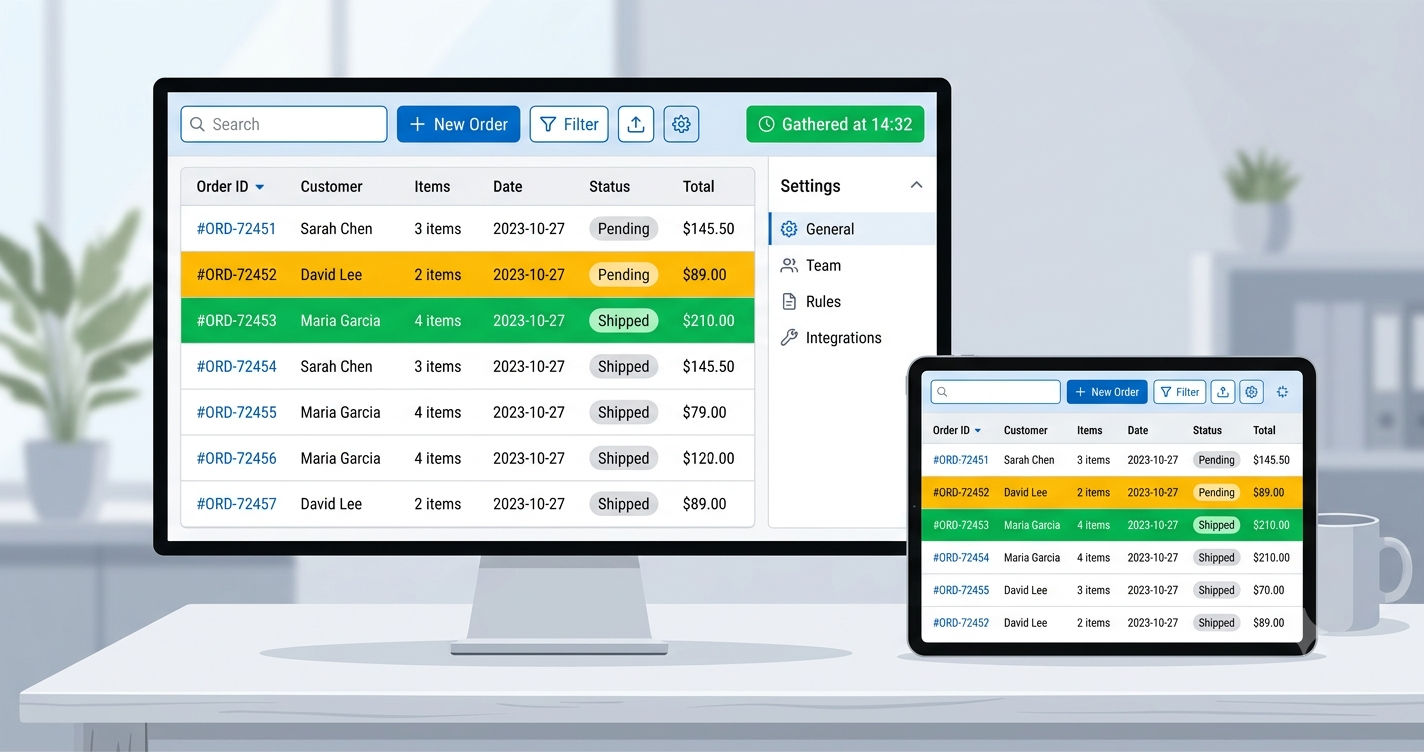
The Live Report in Export OrderPro is more than an auto-refreshing order table. It is a configurable, real-time display that adapts to the screen it runs on, links back to Shopify Admin with a single click, and supports dedicated full-screen mode for any device with a browser. This guide covers every feature on the page — the toolbar controls, the configuration panel, compact mode, Shopify Admin quick-links, and custom columns — along with practical use cases for each.
TL;DR: The Live Report auto-refreshes every 5 minutes, opens full-screen in a dedicated browser tab, and supports a compact display mode for smaller screens. A collapsible configuration panel lets you switch report designs and date filters on the fly. Link columns can be added to open any order or product directly in Shopify Admin with one click.
Related post: This guide covers the full Live Report feature set. For a focused walkthrough on the color-coded Local Row Status column — the feature that turns the Live Report into a kitchen or warehouse display — see How to Turn Any Screen Into a Shopify Live Order Display.
The Live Report Toolbar
The toolbar sits at the top of the Live Report page and holds the four controls that manage every live session. They stay visible above the report table even when the configuration panel is collapsed.
Refresh Now
The Refresh now button triggers an immediate data pull from Shopify. Use it whenever you need the most current orders without waiting for the next automatic cycle — after a burst of new orders during a rush, or at the start of a shift when you want the latest state before the first Auto-refresh fires.
Every time a refresh completes — automatic or manual — a timestamp in green appears above the report table reading Gathered at: HH:MM. This tells your team at a glance how current the data is. If more than 5 minutes have passed, either Auto-refresh is off or a network issue interrupted the last cycle.
Auto-Refresh
The Auto-refresh checkbox enables a timed background cycle. When checked, the Live Report fetches fresh order data from Shopify every 5 minutes without any manual action. The table updates silently and the timestamp resets.
This setting is stored per report in the browser's local storage. If you have two Live Reports open in different tabs — one for your warehouse team and one for your kitchen — each tab keeps its own Auto-refresh preference. Toggling one tab does not affect the other.
Auto-refresh is designed for screens that stay open and unattended: a monitor mounted on a wall, a tablet at a prep station, a shared screen at a checkout counter. For one-time checks or team review sessions, leaving Auto-refresh off and pressing Refresh now gives you on-demand control.
Open in New Tab
The Open in new tab button launches the Live Report in its own standalone browser tab. The standalone tab shows a simplified header — just the Export OrderPro logo and a link back to Shopify Admin — so the full browser window becomes the report display.
Once the report is in its own tab:
- Press F11 on Windows or Linux to go full screen.
- On Mac, use View → Enter Full Screen or the green traffic-light button.
- On Android tablets, Chrome's Add to Home Screen creates a one-tap icon that opens the Live Report directly in full-screen mode.
This is the starting point for turning any device with a browser into a dedicated order screen. No app purchase, no extra hardware, no configuration beyond what you've already set up. A tablet you already own at a prep station, a monitor you already have on a wall — all become functional live order displays.
The Configuration Panel
The configuration panel sits directly below the toolbar. It is collapsible: clicking the Configuration header toggles the panel open or closed. The Live Report remembers whether you left it open or closed and restores that state when you return.
The panel contains two settings sections and a shortcut link.
Report Layout
The Report layout dropdown lets you choose which saved report design the Live Report uses. Switching designs immediately applies the new column layout — the report reloads with the new columns without any save or confirm step.
This is useful when different tasks need different column layouts. A morning shift might use a report design that shows order number, product title, quantity, and shipping address. An afternoon pick-pack run might switch to a layout that adds SKU and barcode columns. Change the design in the configuration panel, and the table updates immediately.
Filters
The Filters section lets you control which orders appear in the Live Report. Select a saved filter set or specify a date range on the fly — today's orders, the last 7 days, or a custom window. Changing a filter triggers an immediate data reload. No save button required.
Combined with the report layout dropdown, filters give you a fast way to scope the Live Report to exactly the orders your team is working on right now.
Display Settings
At the bottom of the configuration panel, the Display settings link takes you to the global configuration page where you can enable Compact mode and adjust other display preferences. Changes made there apply to the Live Report immediately.
Compact Mode
Compact mode reduces the font size and cell padding of the Live Report table so more rows fit on the same screen. It is designed for smaller monitors, tablets, and any setup where vertical space matters.
To enable it: follow the Display settings link inside the configuration panel, or navigate to Settings → Configuration → Report Display, then check the Compact view checkbox. The Live Report switches to the smaller layout immediately — header, toolbar, configuration panel, table cells, and the timestamp all reduce their spacing.
Compact mode is stored in the browser's local storage, so it persists across page reloads and browser restarts on the same device. Enable it once on a display device, and it stays on at every shift without staff needing to re-enable it.
Direct Links to Shopify Admin
One of the most practical and least-discovered features of the Live Report is the ability to add clickable columns that open Shopify Admin pages — or your storefront — directly from the report table. Add them to any report design in the Report Designer, and they render as clickable hyperlinks in the Live Report.
Order URL — Jump to Any Order in One Click
The Order URL column renders the order number as a clickable link. Clicking it opens the order detail page in Shopify Admin in a new browser tab. Any team member who needs to take action on an order — add a note, process a refund, check payment status, or mark it fulfilled — can jump there without navigating through Shopify's admin interface.
Customer service teams find this especially useful: a customer calls about their order, the agent spots it in the Live Report, and clicks the order number to open the Shopify order page in one step.
Product URL and Product Variant URL
Product URL renders the product title as a link to that product's page in Shopify Admin. Product Variant URL renders the variant title (size, color, or any variant attribute) as a link to the specific variant in Shopify Admin.
These are useful for teams that need to cross-reference inventory levels, update product descriptions, or adjust variant details while processing orders. A warehouse spotter flagging a product issue can click through to the Admin product page without switching windows or searching.
Order Status URL — The Customer's View of Their Order
Order Status URL renders the order number as a link to the public order status page — the customer-facing tracking page that Shopify generates for each order. This is different from the Admin order page: it shows what the customer sees, including fulfillment events, tracking updates, and the estimated delivery.
Customer support teams use this to instantly see the same order status page the customer is looking at, without having to ask for the order number and navigate separately. Click the link, and you're on the customer's exact view.
Product Storefront URL
Product Storefront URL renders the product title as a link to the live product page on your Shopify storefront — not the Admin page. This lets your team quickly check how a product appears to customers: current price, available variants, stock display, and any active discounts.
Custom Columns and Color-Coded Rows
The Report Designer supports ten types of custom columns that add data beyond Shopify's standard order fields, from metafields and line item properties to a live Excel formula. In the Live Report, the most visually impactful is Local Row Status — a per-row dropdown that color-codes each order row when a staff member selects a preparation stage. Processing turns the row amber. Ready turns it green. Packed fades it to grey.
All selections are stored in the browser's local storage. Nothing is written to Shopify, no API permissions are needed, and the status choices survive page refreshes and the 5-minute Auto-refresh cycle on the same device.
For full setup instructions — adding the column, defining status options, choosing colors, and running a two-screen kitchen display — see How to Turn Any Screen Into a Shopify Live Order Display.
Real-World Use Cases
The Live Report's features combine in different ways depending on the team using it.
Restaurants and Cafes
Incoming Shopify online orders appear on a kitchen screen in standalone full-screen mode. Auto-refresh keeps the display current. A Local Row Status column tracks each order through preparation stages — Processing (amber), Ready (green), Served (grey). The Order URL column lets front-of-house staff open the Shopify order in one click when a customer calls about a change.
Warehouse Pick-and-Pack Lines
The Live Report runs on a shared screen at a packing station with a report design showing order number, SKU, quantity, and shipping address. A Local Row Status column tracks each order through the pick-pack cycle. Staff mark orders as they complete each stage without needing Shopify Admin access. Compact mode fits more orders on the screen during high-volume runs.
Customer Service Teams
The Live Report stays open as a reference display during service hours. Auto-refresh keeps the order list current. The Order URL column lets a rep jump directly to any Shopify order detail page the moment a customer calls. A report design showing payment status, fulfillment status, and customer name gives the rep context before they click through.
Flash Sales and Event Monitoring
During a time-limited promotion, a marketing or operations team watches order volume in real time. Auto-refresh updates every 5 minutes. Compact mode fits more orders on one screen, giving a broader view of incoming volume without scrolling. The configuration panel's date filter can be narrowed to the exact sale window.
Multi-Location Operations
A business with multiple fulfillment locations runs one Live Report tab per location, each with a different report design and filter scoped to that location's orders. Each tab has Auto-refresh on. Each team sees only their location's queue. No cross-location noise.
Frequently Asked Questions
Does Auto-refresh in one tab affect other Live Report tabs?
No. Auto-refresh is stored per report in the browser. If you have two Live Report tabs open with different report designs, each tab's Auto-refresh setting is independent. Enabling or disabling one does not affect the other.
Does Compact mode affect other parts of the app?
No. Compact mode is a display-only setting that applies exclusively to the Live Report page. Manual export previews, automation configurations, and other views in Export OrderPro are not affected.
Do the Shopify Admin link columns require special permissions?
No. The link columns — Order URL, Product URL, Product Variant URL, Order Status URL, Product Storefront URL — are plain hyperlinks in the rendered table. Whether the user can view the destination page depends on their Shopify account permissions, not anything in Export OrderPro.
Can I run the Live Report on a device where staff don't have Shopify Admin access?
Yes. The standalone Live Report tab runs on any device with a browser and an internet connection. Staff can view orders, use the Local Row Status dropdown to track preparation stages, and see all columns from your report design — without a Shopify staff account. The Live Report uses its own authentication, separate from Shopify Admin login.
What happens to Local Row Status selections when the report refreshes?
Local Row Status selections are stored in the browser's local storage keyed to each specific order. When Auto-refresh fires or you press Refresh now, the dropdown values persist on the same device. If an order no longer appears in the report after a filter change, its stored selection stays in local storage and will reappear if the order comes back into the view.
Next Steps
For a feature overview and use-case summary, see the Live Report feature page.
To set up color-coded row tracking for kitchen or warehouse use, see How to Turn Any Screen Into a Shopify Live Order Display.
For a detailed guide to the filter options that control which orders appear in the Live Report, see Shopify Order Filters Explained: How Export OrderPro Goes Further.