EXPORT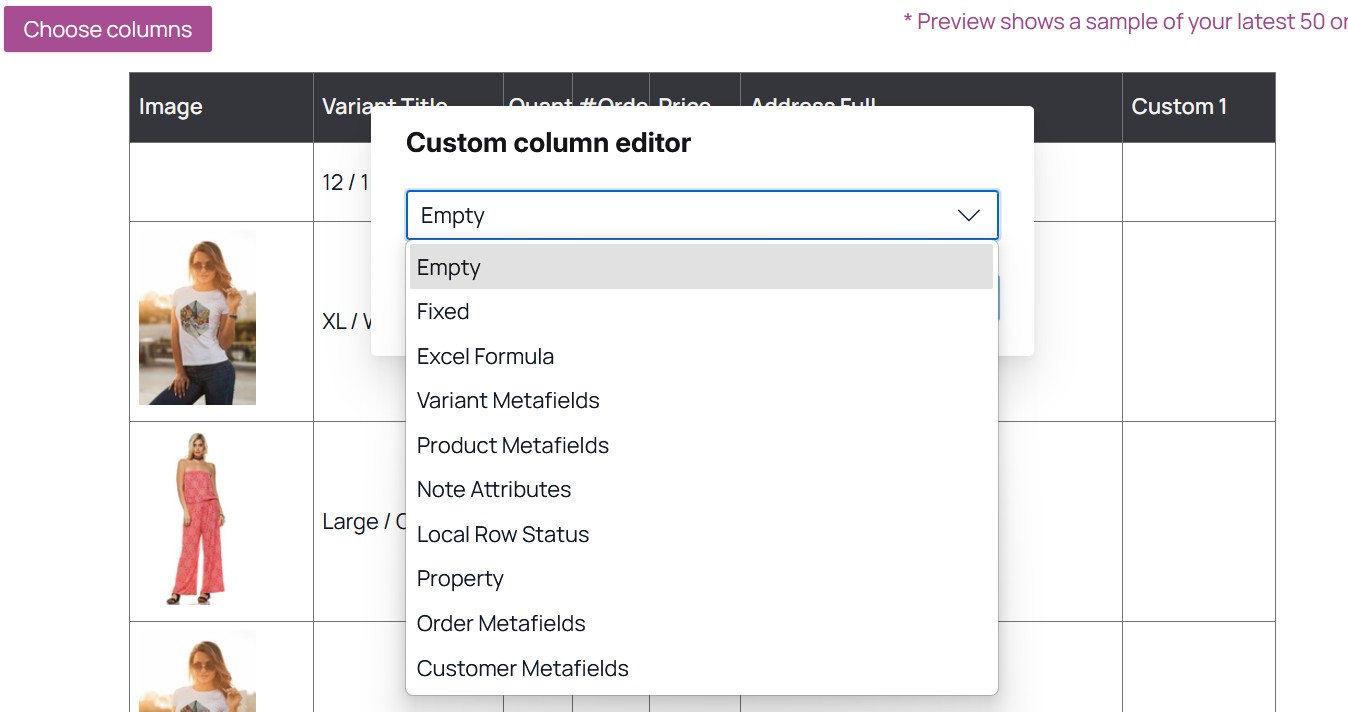
Shopify's order export has no field for metafields, no field for line item properties, and no way to write a formula into a cell. If your report needs any of that, the built-in export simply stops short. Export OrderPro closes that gap with Custom Columns — a set of configurable slots inside every report design that you can wire to whatever data Shopify itself won't hand you. This guide walks through exactly what they are, how to set one up, and where the real limits sit.
Key Takeaways
- Every report design in Export OrderPro has 110 custom column slots (
Custom 1throughCustom 110), each configured independently.- Ten data-source categories are available: static text, a live Excel formula, four metafield types, note attributes, line item properties, and a browser-only status tracker.
- Excel formula columns accept real Excel syntax (up to 900 characters) and auto-adjust the row reference for every line in the export.
- Custom columns are configured per report design, not globally — reuse a setup by cloning the whole report rather than re-entering it.
What a Custom Column Actually Is
A custom column is a blank slot in a report design that you assign to a specific data source instead of waiting for a built-in field to cover it. Each report design ships with 110 of these slots, and every one starts out empty until you configure it.
That number matters more than it sounds like it should. Shopify's order export has a limitation the platform hasn't addressed: metafields don't come along with an order export, whether you trigger it manually or run it on a schedule. Merchants have been asking about this on Shopify's own community forum for line item properties too, without a native fix arriving. Custom columns exist because that gap isn't going away on its own.
Think of them as the self-service alternative to filing a feature request. Instead of waiting for Export OrderPro to ship a dedicated column for your specific metafield or your specific formula, you configure one yourself, in the Report Designer, in under a minute.
How to Configure a Custom Column
Configuring a custom column happens entirely inside the Report Designer, and the flow is the same regardless of which data source you pick. Right-click any custom column's header, choose Edit custom column, and a dialog opens with a category picker at the top.
The category you select determines the one field you need to fill in below it — a metafield key, a block of static text, an Excel formula, whatever the category calls for. There's no multi-step wizard and nothing else to configure until you've made that choice.
Once you've filled in the field, the Save button only activates when the form is both valid and actually changed. You can't accidentally save a half-finished column, and you can't save a metafield category without a key. After saving, most category types reload the report's preview table immediately, so you see real values in the column within seconds — not after the next scheduled export.
For a walkthrough of the whole Report Designer, including choosing columns and setting up your first export, see Getting Started with Export OrderPro.
Metafields, Note Attributes, and Line Item Properties: The Data Sources Beyond Static Text
Nine real data sources sit behind the category picker, plus a tenth "empty" state for slots you haven't touched yet. The simplest is Fixed text — a static value, capped at 100 characters, that repeats on every row. It's a small feature, but useful for stamping a warehouse code or a batch label onto every line of an export without a real Shopify field backing it.
Four categories pull from Shopify metafields: Order Metafields, Customer Metafields, Product Metafields, and Variant Metafields. Each takes a metafield key and pulls that value at export time, which is precisely the capability Shopify's native export lacks. Because each metafield category triggers an extra API call per row, Export OrderPro flags these as "slow" columns in the picker and trims the live preview from 50 orders down to 20 when one is active — worth knowing before you build a report around five metafield columns and wonder why it loads slower than the rest.
Two more categories reach into order-specific data that isn't a metafield at all. Note Attributes pulls from the "additional details" a customer adds at checkout. Property pulls from line item properties — the custom text, engraving details, or personalization options attached to an individual product in the cart. If you only need the first few line item properties, Export OrderPro also ships pre-wired Order Property 1–6 columns that skip the key-entry step entirely; the Property category is for anything beyond that.
That's eight categories. The ninth, Excel Formula, is different enough to earn its own section.
Excel Formulas Inside Your Export
An Excel Formula column writes an actual Excel formula into the cell, not a calculated value. Type =A1*B1 or =SUM(D1:F1) against the first data row, and Export OrderPro adjusts the row reference automatically for every row that follows — you write the formula once, and it lands correctly on row 2, row 50, and row 5,000.
There's one hard rule the editor enforces: the formula must start with =. Beyond that, character count is the only other limit — up to 900 characters, which comfortably covers a nested IF() or a multi-range SUM(). What the editor does not do is check whether the formula is actually valid Excel syntax. That check happens when the file opens, not when you save the column, so a typo in a formula shows up as an #ERROR in the spreadsheet rather than a warning in Export OrderPro.
It's worth being precise about what this is and isn't. It's genuine Excel formula syntax, evaluated by Excel itself when the file opens — not a scripting language, not a Liquid template, and not something Export OrderPro's servers calculate for you. If you already know Excel formulas, you already know how to use this category. It's also a good reason to export to a real .xlsx file rather than CSV in the first place — see How to Export Shopify Orders to Excel for why the file format matters here.
Local Row Status Never Leaves Your Browser
Local Row Status is the one custom column category that behaves nothing like the other nine. It adds a dropdown to each row where a staff member can pick a status — Processing, Ready, Packed, whatever labels you define — and each status gets its own background and text color. Rows can even highlight in full when a status is selected, which is what makes it the backbone of the kitchen and warehouse display setups built on top of the Live Report.
Here's the part worth knowing before you rely on it: every selection is saved to that browser's local storage, tied to the order and line item. Nothing is written to Shopify, no API call happens, and the exported spreadsheet file never contains the column's values. A teammate on a different device won't see the status you picked, and it won't appear in a scheduled export sent to your accountant.
That's a feature, not an oversight, for the use case it's built for — a shared screen tracking today's orders in real time doesn't need its status history saved anywhere permanent. But if you need a status that persists across devices or shows up in an exported file, Local Row Status is the wrong tool, and a metafield-backed column is the right one. The full feature set of the Live Report, including where Local Row Status fits alongside auto-refresh and Shopify Admin quick links, is covered in Export OrderPro Live Report: Complete Feature Guide.
What Custom Columns Can't Do Yet
Custom columns solve the missing-field problem, but they aren't a rules engine, and it's worth being upfront about where the edges are. There's no conditional builder for saying "if the order tag contains X, show Y" — each custom column maps to exactly one data source, chosen once from the category picker. If you need conditional logic, an Excel IF() formula is the closest tool available, and it's entirely manual: you write the condition yourself in Excel syntax.
There's also no way to concatenate multiple fields into a single custom column — no built-in "combine the SKU and the variant title with a dash between them" option. Each category reads from exactly one source. A related but separate feature, numeric conditional formatting, can color a number red when it falls below a threshold you set, but that applies to any numeric column in a report design, custom or not, and it isn't part of the custom column system itself.
None of this is a dealbreaker for the vast majority of reports, which need one clean value per column rather than layered logic. But if your workflow depends on branching rules across multiple fields, know that going in rather than discovering it mid-setup.
Reusing a Custom Column Setup Across Report Designs
Custom columns live inside a single report design, not in a shared library across your account. Configure Custom 1 as an Order Metafield in one report, and that setting has no effect on Custom 1 in any other report design you've built — each one keeps its own independent configuration.
The practical way to reuse a setup is cloning. Duplicate an existing report design and every custom column configuration comes with it, ready to tweak for a new use case rather than rebuilt from scratch. This is worth knowing if you're planning several report designs around the same metafields or the same Excel formula — build the first one carefully, then clone it as your starting template. For a broader comparison of what a report design can do versus Shopify's fixed export, see Shopify's Built-In Order Export vs. Export OrderPro, and for the filtering side of a report design, see Shopify Order Filters Explained: How Export OrderPro Goes Further.
Frequently Asked Questions
Can Shopify export order metafields natively?
No. Shopify's built-in order export has no mechanism for including metafields, whether the export is triggered manually or run on a schedule. That's why apps like Export OrderPro add metafield-backed custom columns as a workaround, pulling the value directly at export time using the metafield's key.
How many custom columns can one report design have?
Up to 110 — Custom 1 through Custom 110 — and each one is configured independently. You won't run out of slots on a normal report design; most use a handful.
Do custom columns carry over automatically to my other report designs?
No. Each report design keeps its own custom column setup. To reuse a configuration, clone the report design rather than re-entering the same metafield keys or formula in a new one.
Will Export OrderPro warn me if my Excel formula has a mistake?
Only the leading = is checked before you save. The formula itself is evaluated by Excel when the file is opened, so a syntax mistake shows up as a spreadsheet error rather than a warning inside Export OrderPro. Double-check the formula against a live cell before relying on it in a scheduled report.
Next Steps
To see custom columns alongside every other Report Designer feature, start with Getting Started with Export OrderPro.
To put Local Row Status to work on a shared screen, see How to Turn Any Screen Into a Shopify Live Order Display.
For a full comparison of what Export OrderPro adds on top of Shopify's built-in export, see Shopify's Built-In Order Export vs. Export OrderPro.